Photographing the Milky Way with iPhone Night mode
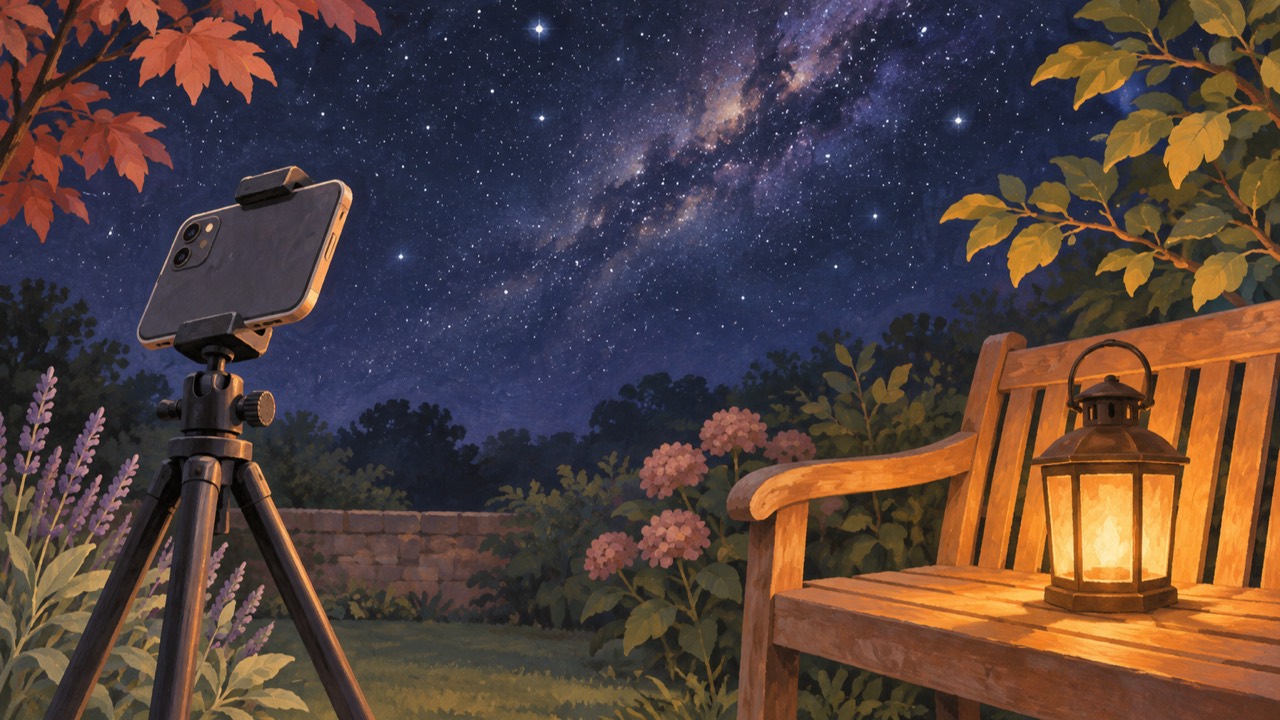
Start with a dark sky and a stable phone, then use Night mode on a supported iPhone. Adjust the available capture time instead of assuming one setting works everywhere.
1. Start with a dark sky
NASA explains that from dark places far from bright city lights, the Milky Way looks like a faint band of light across the night sky. Check the sky conditions before you shoot.
2. Stabilize the phone
Use a secure surface or tripod and keep iPhone still until capture finishes. NASA also notes that some phones can photograph the night sky when stabilized.
3. Check that Night mode is active
On supported models, Night mode activates in low light and its icon turns yellow. Turning on flash or Live Photos disables it.
4. Adjust the available capture time
The number beside the Night mode icon is the capture time. Its slider can select a longer available exposure, then displays a countdown during capture.
5. Wait for capture to finish
A Night mode exposure may take several seconds. Hold still until it ends, then compare results with other available capture times.
Sources: science.nasa.gov/skywatching/ · support.apple.com/en-mt/102519 · apps.apple.com/tw/app/nightvane-star-guide/id6826494660
 Roomory

 Inside
 Tuck